
Built for WISP operators leaving legacy desktop tools
See your whole WispLink, live on one map.
TowerLens monitors your entire wireless network in real time: geographic map, auto-topology, spectrum & interference scanning, per-client roaming history, maintenance windows, firmware drift tracking, and 90-day SLA reporting — with a self-hosted Python API behind it. Import your existing device list and you're live in minutes.
No signup for the demo. Every device, IP and place name in it is fictional.
- 179+
- devices monitored live in the demo
- 15
- sites on the geographic map
- 30s
- default poll cycle
- 100%
- self-hosted — your data stays on your network
Everything a legacy desktop monitor did. A few things it never could.
One dashboard for the whole fleet — geography, topology, performance and backups, all talking to the same poll engine. Click any card for the full tour.

Live geographic map
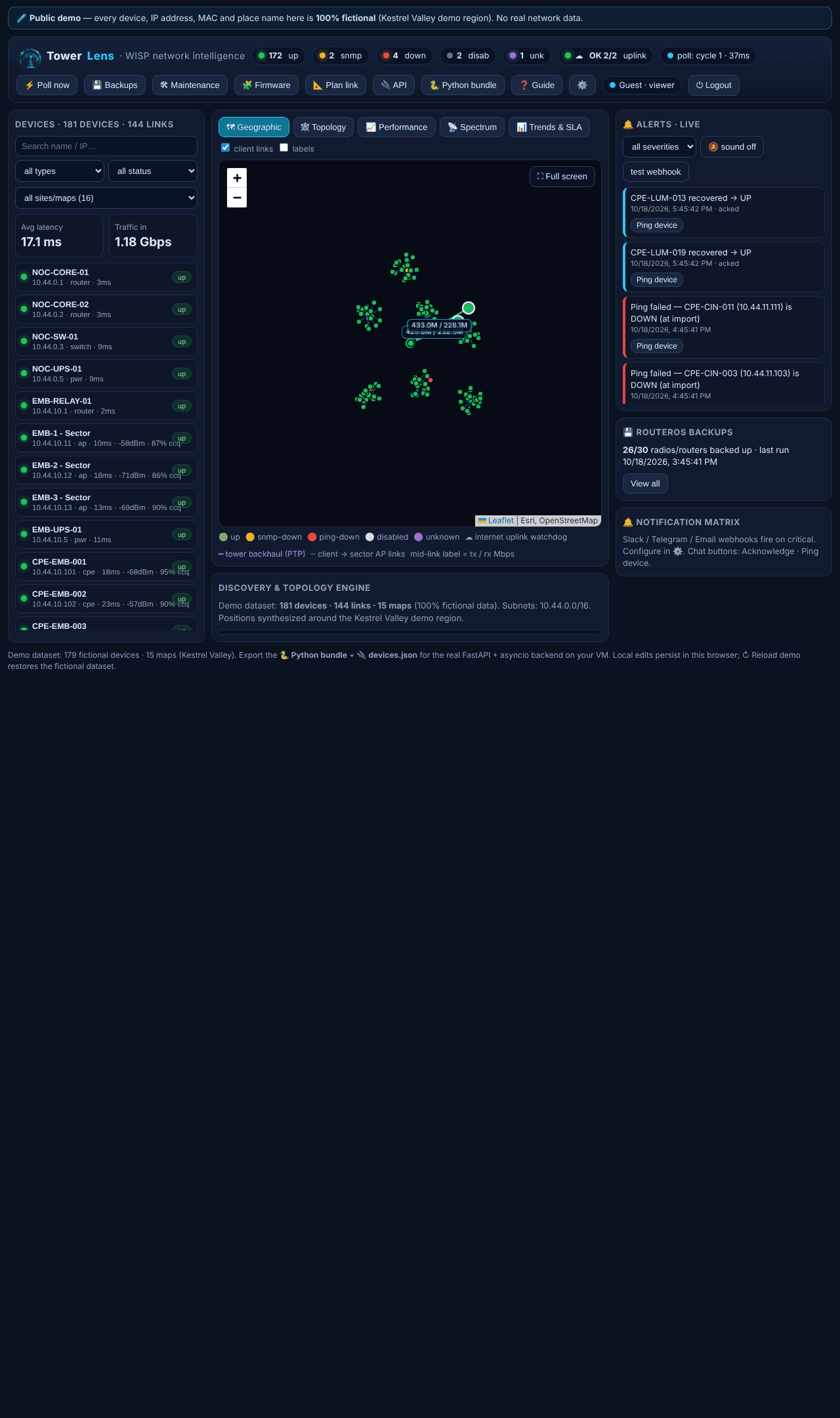
Every tower site plotted on a real map, with client → sector-AP links drawn live. Click any marker for an instant status read.

Auto-topology
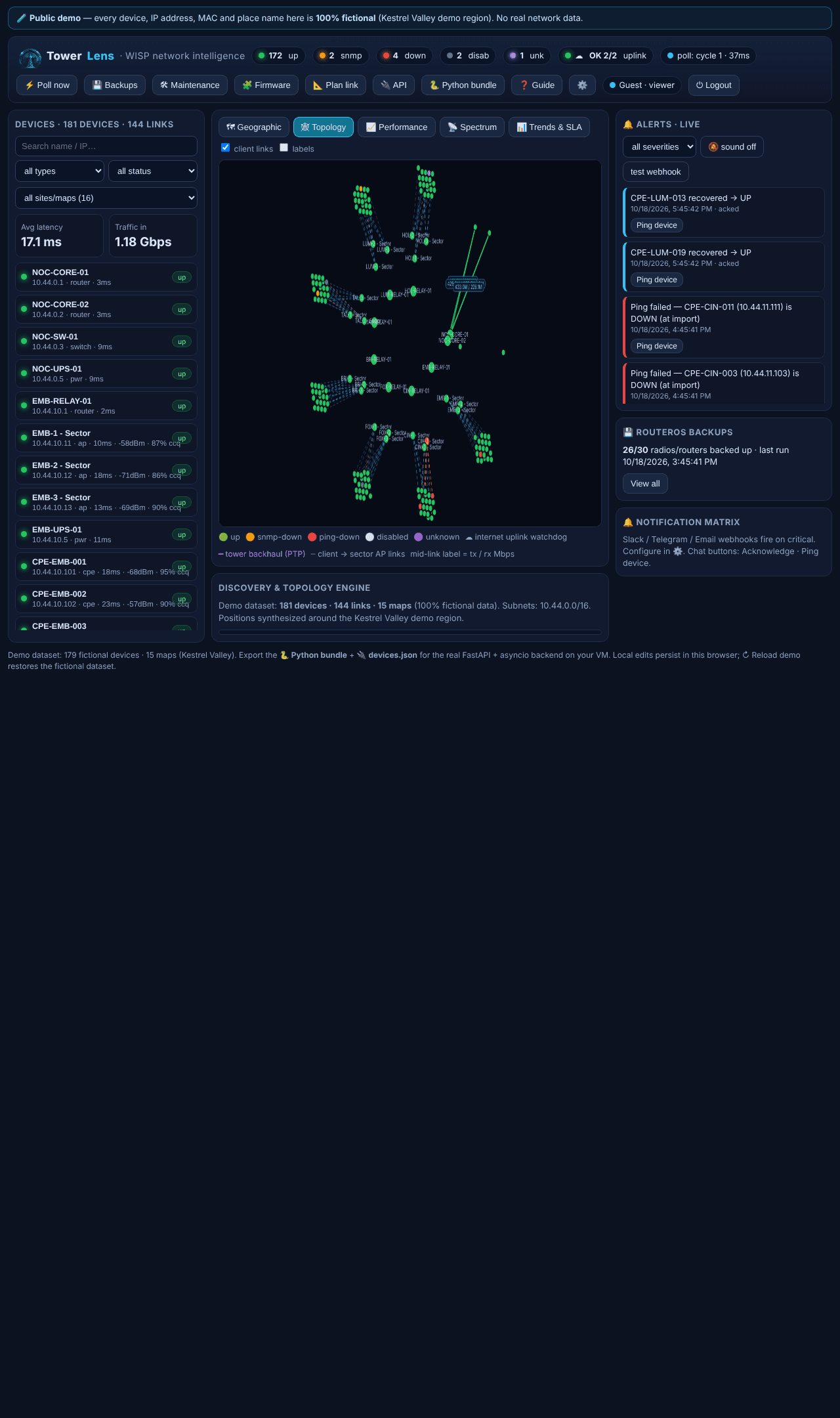
A schematic site-ring view builds itself from your network — drag nodes to untangle, click any node for detail.

ICMP + SNMP polling
A real poll engine: ping retry-2x → SNMP → port probes, with link-state inference and a proper alert state machine.

Wireless signal & CCQ analytics
Live signal dBm with quality label, noise floor + SNR, CCQ % with a colour bar, TX/RX rates, retry/error rate, and history charts per link.

Spectrum & interference scanning
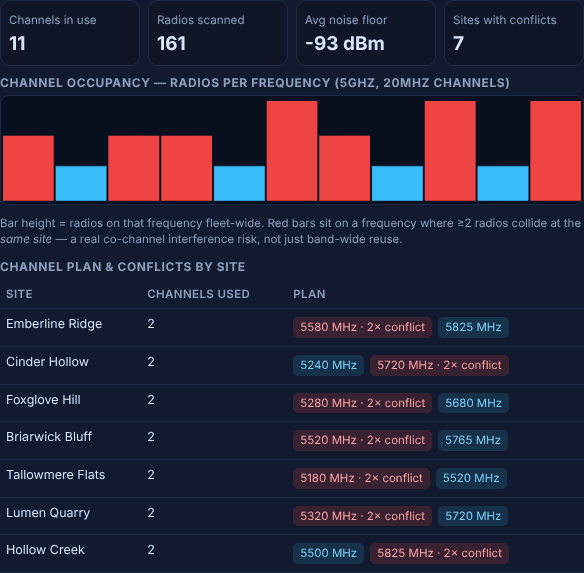
A dedicated frequency view shows noise floor and channel occupancy across the band, with automated co-channel conflict detection between sector APs — the kind of interference check legacy desktop tools left for WISP techs to do by hand.

Per-AP client roster
Drill from any sector AP straight down to every CPE riding it — signal, CCQ and retry rate per client, sorted worst-first — plus roaming/reconnect history for diagnosing 'it drops every afternoon' complaints.

Maintenance windows
Mute alerts for a whole site during planned work instead of ack-all after the fact — devices keep polling for real, only the noise gets suppressed.

Firmware & config drift tracking
See every RouterOS and other radio firmware version across the fleet at a glance, flag what's overdue against the latest known build, and schedule a one-click upgrade.

Alert-to-ticket webhook
Turn any alert into a support ticket with one click — posts to your helpdesk's webhook with that device's outage history already attached.

90-day trends & SLA reporting
Retained latency, CCQ, traffic and uptime history per site — well beyond the live poll window — with exportable per-site SLA/uptime reports for anyone you're billing against an SLA.

Line-of-sight / Fresnel planning
Plan a new sector or backhaul link against towers you already have: straight-line distance plus an indicative first Fresnel-zone clearance estimate, right on the map.

RouterOS backups
Scheduled backups across your fleet, per-device status and size, plaintext .rsc inspection, and automatic critical alerts on failure.

Alerts that don't get lost
A live feed with acknowledge and ping-device actions, severity filters, an audible alarm toggle, and ack-all for maintenance windows.

Vendor-neutral monitoring
Auto-detects MikroTik, Cambium, Mimosa and other common wireless gear — ping/SNMP monitoring itself stays vendor-neutral across your whole fleet.

Self-hosted Python API
A self-hosted FastAPI + asyncio backend — schema, poller, API and backup scripts — built into the TowerLens install, so your network data never leaves your network.

Uplink & path-ping watchdogs
Internet uplinks polled like any device, plus path ping from any node with selectable payload size and count for real diagnostics.
A tour of the actual dashboard
Real captures from the running app — not mockups. Open the live demo to click through it yourself.
Geographic dashboard →
Every site is a pin on a real map. Green, amber, red, grey, purple — status is legible at a glance, with client links drawn live underneath.
Topology view →
A schematic, draggable site-ring layout for when you need the network's shape, not its geography — works offline, no map tiles required.
Fleet performance →
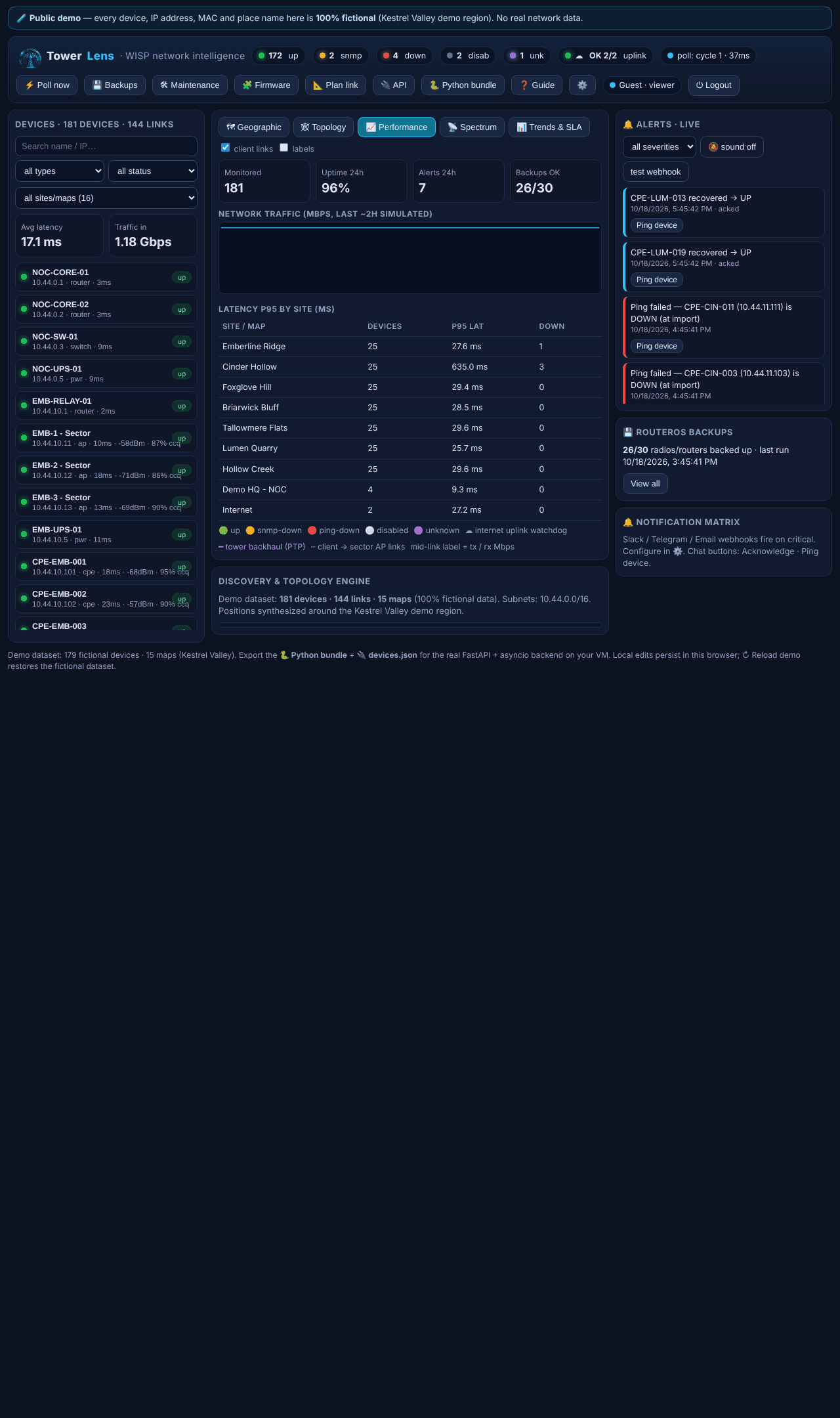
Traffic across the fleet, p95 latency per top site, and rolling uptime, alert and backup counters — the numbers ops actually checks every morning.
Spectrum & interference →
Channel occupancy and noise floor fleet-wide, with automated co-channel conflict detection between sector APs — before a customer calls in about it.
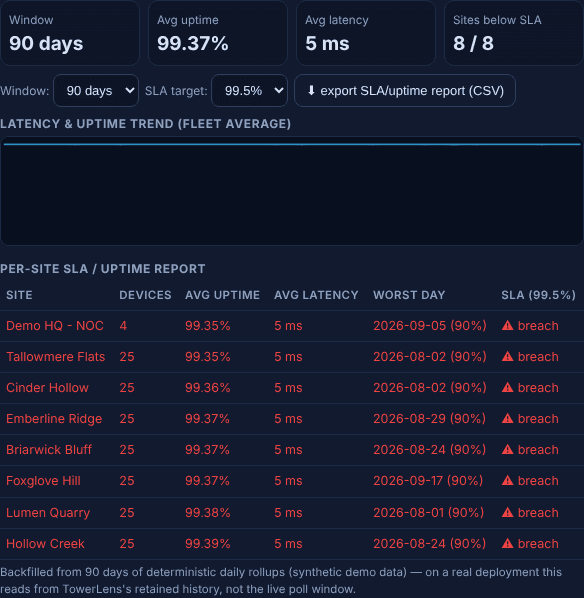
Trends & SLA →
30/90-day retained history per site, an SLA target check, and a one-click CSV export for anyone you're billing against an uptime commitment.
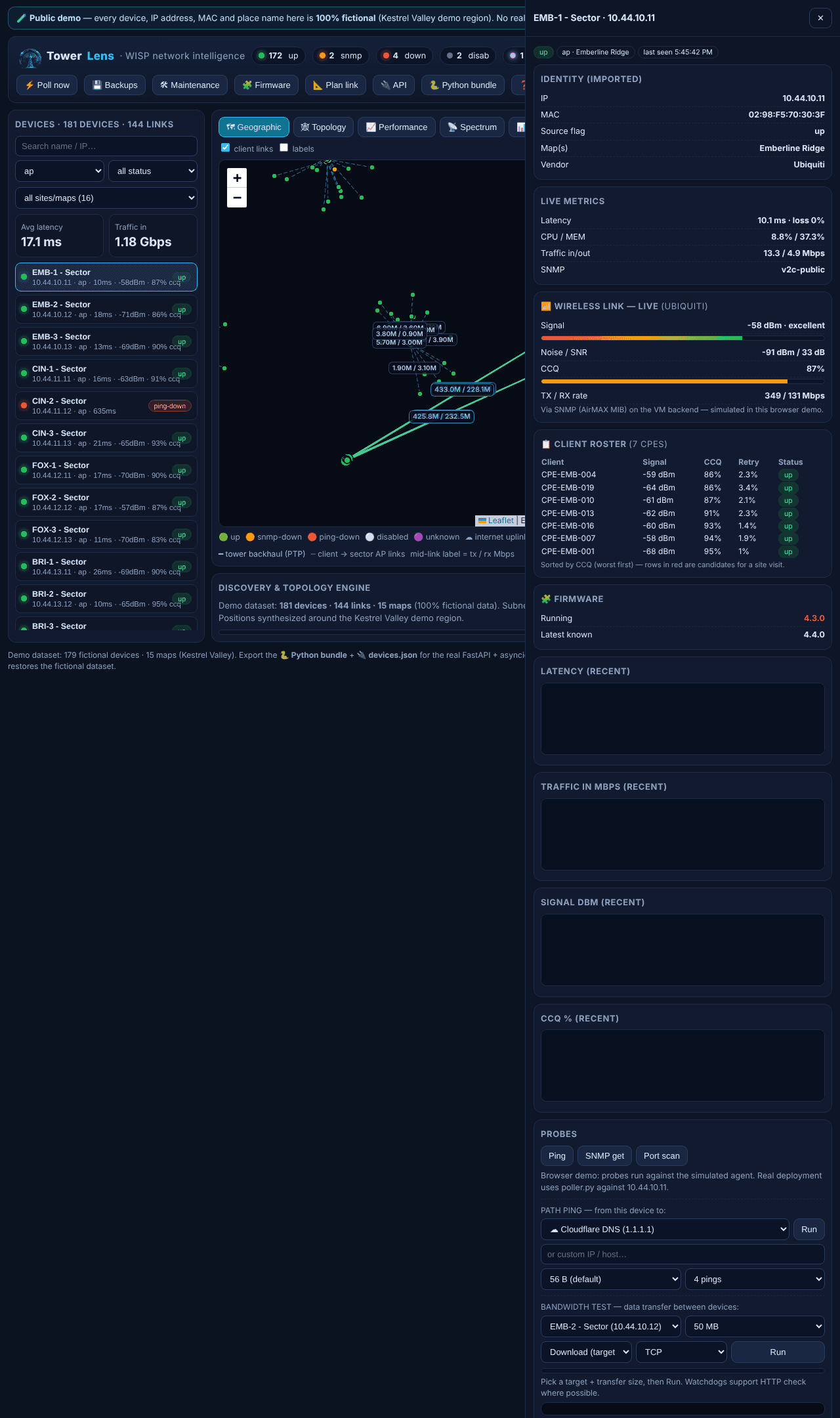
Device drawer →
Click any device for its identity card, live metrics and graphs, wireless signal/CCQ history, probes, client roster, and its generated RouterOS export.
TowerLens vs. legacy desktop monitoring
Legacy desktop NMS tools got a lot of WISPs running. They also stopped moving. Here's the honest comparison.
| Capability | Legacy desktop tool | TowerLens |
|---|---|---|
| Geographic map with live status | Basic | Yes — plus flight-to-site filtering |
| Wireless signal / CCQ analytics | Limited | dBm, noise floor, SNR, CCQ history |
| RouterOS scheduled backups | Manual | Scheduled, per-device, with alerts |
| Alert state machine | Simple | Ping → SNMP → port, with retry logic |
| Modern web UI | Legacy desktop app | Browser-based, mobile-friendly |
| Self-hosted API | No | FastAPI + asyncio, installed on your network |
| Vendor-neutral device support | MikroTik-centric | MikroTik, Cambium, Mimosa and others |
| Spectrum / interference view | No | Noise floor + channel occupancy + conflict detection |
| Per-client visibility | Device-level only | Per-AP client roster + roaming history |
| Maintenance windows | No | Mute alerts per site during planned work |
| Firmware/config drift tracking | No | Fleet-wide, with one-click scheduled upgrades |
| Alert → ticket workflow | No | Webhook out, with outage history attached |
| Historical trends & SLA reports | Live window only | 30/90-day retention, exportable per-site CSV |
| Link planning (LOS/Fresnel) | No | Indicative Fresnel-zone estimate on the map |
| Still actively developed | Discontinued | Yes |
Frequently asked questions
Is the live demo a real network, or simulated?+
100% simulated and 100% fictional — 179 invented devices across 15 demo sites, with no real names, IPs, MACs or locations anywhere. The browser demo runs the same retry/timeout state machine as the real poller, at full scale, without needing a backend.
Can it actually replace my legacy desktop monitoring tool?+
Yes, for monitoring and visualization — geographic map, topology, device drawer, alerts, and RouterOS backups cover what most WISPs relied on a legacy desktop app for day to day, with a modern browser UI and a self-hosted API behind it.
Does TowerLens support non-MikroTik gear?+
Ping/SNMP monitoring is vendor-neutral. TowerLens auto-detects MikroTik, Cambium, Mimosa and other common wireless gear, and lets you override the vendor per device in the drawer.
Where does my network data live?+
Locally, on your own network. TowerLens installs on a machine you control and polls your devices directly — your network data never goes to a third-party cloud. A licensed install does a small periodic check-in to verify the subscription; that's the only thing that leaves your network.
What does real ICMP/SNMP polling need that the browser demo can't do?+
Browsers can't open raw ICMP or SNMP sockets, so the demo simulates the poll engine. The installed backend runs the same logic for real against your network, on the machine you install it on.
How do I get my existing devices in?+
Export your device list from your current monitoring tool or RouterOS/Winbox, then seed the database with the 🔌 API bundle's devices.json loader, or add devices individually from the dashboard.
Stop reading tables. Start seeing your network.
Open the live demo — no signup, no install, click around for five minutes and see if it clicks.
Launch the live demo →